


24x7 Sales & Account Help: +91 7681044239

Contact Info

+91 7681044239

support@wingshoster.com

How to Deploy a WordPress site with cPanel

How to Deploy a WordPress site with cPanel

Launching a WordPress® site doesn’t have to be complicated. If your hosting provider offers cPanel, you already have one of the easiest ways to set up and manage your website

How to Deploy a WordPress® Site With cPanel

Launching a WordPress® site doesn’t have to be complicated. If your hosting provider offers cPanel, you already have one of the easiest ways to set up and manage your website. Whether you’re starting a blog, business site, or online store, cPanel provides the tools you need to install, configure, and manage WordPress in just a few steps.

In this guide, we’ll walk you through the process of deploying a WordPress site using cPanel.

  • Why Use cPanel for WordPress Deployment?
  1. cPanel is one of the most widely used hosting control panels. It offers:
  2. Oneclick WordPress installation with tools like Softaculous Apps Installer.
  3. Easy access to databases, file manager, and email accounts.
  4. Security features such as SSL installation and backups.
  5. User-friendly interface, even if you’re not a developer.

Step-by-Step Guide to Deploying WordPress in cPanel

1. Log in to Your cPanel

  • Visit your hosting provider’s login page.
  • Enter your username and password to access cPanel.
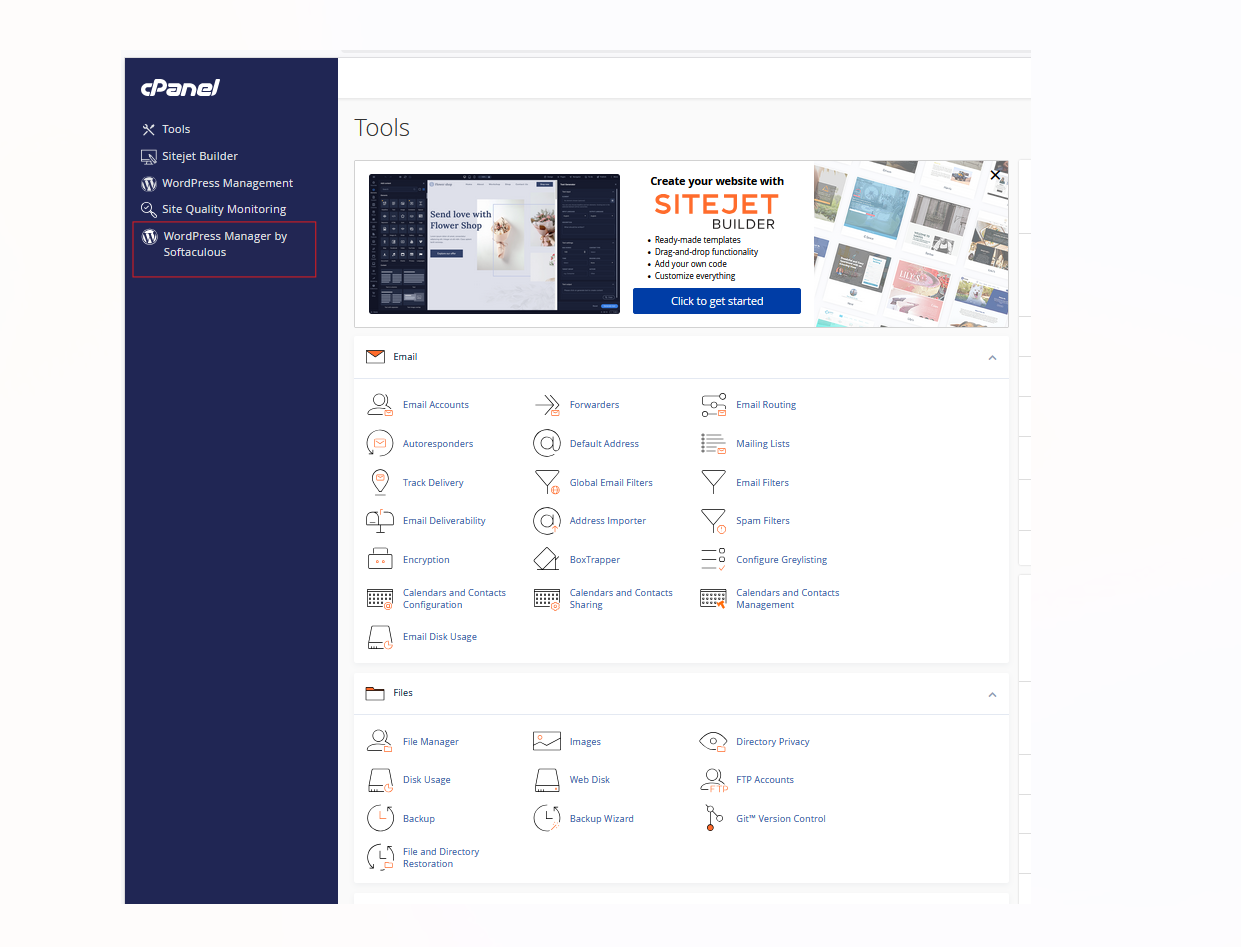
  • Look for the cPanel dashboard—usually organized into sections like Databases, Files, Software, and Security.

2. Locate the WordPress Installer

Most cPanel setups include Softaculous Apps Installer or a similar auto-installer tool.

  • Find Softaculous under the Software section.Click on WordPress to begin the installation process.

3. Configure Your WordPress Installation

You’ll need to provide some details:

  • Choose Protocol & Domain: Select https:// if you already have an SSL certificate. Choose the domain where you want WordPress installed.
  • Site Settings: Add your site title and description (you can update this later in WordPress).
  • Admin Account: Create a strong username, password, and admin email address.
  • Select Language & Plugins: Choose your preferred language and optional plugins (e.g., contact form, caching).

4. Select Database and Advanced Options (Optional)

If you want to manage database settings:

  • Expand the Advanced Options tab.
  • Here, you can set your own database name, table prefix, and manage backup settings.
  • Leave it on default if you’re unsure—Softaculous will handle it.

5. Install WordPress

  • Click Install to start the process.
  • Within a few minutes, WordPress will be installed on your domain.
  • You’ll see a success message with links to:
  • Your WordPress site (e.g., yourdomain.com)Your WordPress Admin Dashboard (e.g., yourdomain.com/wp-admin)
  •  

6. Access Your WordPress Dashboard

  • Go to yourdomain.com/wp-admin.
  • Enter the admin username and password you created.
  • From here, you can:
    • Choose a theme
    • Install plugins
    • Add pages and blog posts
    • Customize your website
  • Add pages and blog posts

Frequently Asked Questions

You can start with either. Many clients build first and then choose hosting. If you want staging and a live link during development, hosting helps early.

Yes. We can help you register a domain, set DNS, and enable SSL so your site loads securely over HTTPS.

Yes. We can help migrate websites and email depending on your stack and current provider. Share details and we’ll recommend the best approach.

For most WordPress sites, WordPress hosting is the easiest option. High-traffic or custom workloads may perform better on VPS hosting.

We offer always-on monitoring and incident handling, and we can guide you on plan selection and setup.
Hi, How i can help you?