
 INR
INR


How to complex shipping options in WooCommerce
Set Up Shipping Zones and Methods (Built-in)
WooCommerce lets you define shipping zones (e.g., countries, states, postal codes) and assign methods:
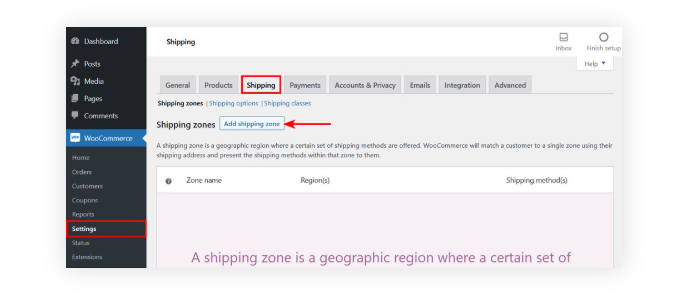
- Go to WooCommerce → Settings → Shipping
- Add Shipping Zones (e.g., “US East Coast,” “California,” “Europe”)
- Assign methods to each zone (Flat Rate, Free Shipping, Local Pickup).
- For Flat Rate, you can define base costs and per-item, per-class fees.
🔹 Example: $5 flat + $1 per item for California, $10 flat for New York.
Use Shipping Classes (Per Product or Category Pricing)
If certain products require different rates (e.g., fragile items, bulky items):
- Go to WooCommerce → Settings → Shipping → Shipping Classes
- Create classes like “Heavy”, “Fragile”, “Standard”
- Assign classes to products.
- In Flat Rate settings, configure costs per shipping class.
Add Conditional Logic (Plugins)
The built-in tools are limited. For complex rules, use plugins:
- Table Rate Shipping for WooCommerce (official)
- Set rules by weight, item count, subtotal, or destination.
- Example:
- 0–5 kg → $10
- 5–10 kg → $20
- Orders over $100 → Free shipping
- Flexible Shipping (WP Desk) – Great for tiered or advanced logic.
- Conditional Shipping and Payments – Restrict certain methods based on products, user roles, or cart contents.